Technical Troubleshooting
Author: Arieh @ Bahamut
This will be an eternal work in progress but hopefully can act as a useful FAQ for people who just quickly want to see if there’s a general solution for an issue they have run into while trying to set up or play FFXI.
General Issues
- My controller doesn’t work!
- Check controllers are enabled in gamepad settings
- Check if the controller is bound correctly in gamepad settings (you can also do this from ingame)
- PlayOnline AND FFXI have separate gamepad settings configurations, you have to set it up for both of them separately.
- I can’t type into XI or PlayOnline!
- If you’re using a Steam Deck with touch keyboard, make sure you have clicked inside the text box first and then try typing again.
- Change your keyboard to one that only has latin characters (or a japanese IME) such as English, German or French keyboard.
- Also: Korean keyboard doesn’t work in the PlayOnline Viewer correctly; sometimes 영/EN mode does not work, but it will work in FFXI if you are typing in 영/EN mode (한/KR input won’t work at all of course).
- My addons are displaying text incorrectly / not displaying it at all
- You may be missing fonts! These are installed on Windows by default, but if you need to add a font, Microsoft has written a guide for how to do so on Windows.
- For Linux, here is a generic guide for installing them via winetricks.
- The following fonts are required:
- arial
- consolas
- corefonts
- tahoma
- times
- verdana
- The following fonts are required:
- I can hear PlayOnline music but I can’t see the window!
- Here is a guide I wrote that talks about how to do this in Linux, but you can do the same in Windows from the registry editor also.
- I randomly zone into a black screen!
- This is because the game has run out of memory, because by default the game can only use up to 2GB RAM maximum, due to a limitation with how most applications worked in much older versions of Windows.
- Apply the Large Address Aware patch to your FFXI install. You can do this by downloading the exe file from the releases and then selecting the
pol.exefile in yourPlayOnlineViewerinstall folder on your PC. This is usually located atC:\Program Files (x86)\SquareEnix\PlayOnlineViewerif you installed FFXI to it’s default location.
My game is stuttering!
When your game is stuttering, always try in vanilla FFXI (without windower/ashita) as well to see if it is a issue that is caused by a addon/plugin, or if it an issue that you have in the game itself.
BG-Wiki has a guide which can help
- Try using dgvoodoo2 if you are on Windows
- On Linux, using dgvoodoo will mean your game will either not launch if the dgvoodoo version is newer than 2.8.2 or will eventually crash due to a memory leak
- Try using atom0s proxy if you are on linux - downloadable from the Ashita discord
- Turn down supersampling / mipmapping
- These graphical settings can cause more lag if they are enabled or set to high.
- If you don’t use a controller, you can disable controller input (from gamepad settings) and this can help with performance since then FFXI will not continuously to check for a connected controller while it is disabled.
I’m having network issues in FFXI
Of course first thing to do is to check if the internet connection works with other applications, and if they don’t, then you will need to check if there are any issues with your internet in general.
If it’s just for FFXI, because the servers for FFXI are hosted in Japan; fixes for this can be approached in a few ways.
- A VPN USUALLY PAID
- I use mullvad personally. When you connect with a VPN, always connect before opening FFXI at all. It will cause problems afterwards otherwise
- Mudfish PAID
- I will write a longer guide for this sometime, but generally you don’t need to buy much credit for FFXI, $10 worth of credit really will last you years.
- For FFXI specifically, don’t use nodes from Russia or you will be disconnected.
Linux
While the FFXI community has made a lot of guides for installing FFXI onto linux, this will require some technical knowledge and knowhow to do, especially if you are installing onto a device like the Steam Deck, which has some quirks which are unique to it as a device. It’s also good to join the Windower/Ashita discords if you run into issues when setting up on Linux, since there are a lot of helpful people in both for debugging issues that you simply cannot find a solution for.
What’s the best way to install XI on Linux?
- Installing via Lutris is the best way to go, and if you have Steam linked to Lutris you can install it via Steam, but I would not recommend this since Steam downloads a much older version by default. Personally I would recommend the following Lutris install script if you want a vanilla install:
Full (US) versionorFull (EU) Version- TODO: Checking things related to wine prefix
- For Windower installation, following this guide works best, and it is pretty simple to follow.
- For Ashita, I tend to use a combination of two guides, This guide made by Ridge and this guide by atom0s (one of the devs of Ashita). I will provide less context for this one since installing Ashita is much more technical and generally if you are using Ashita, you require some level of technical knowledge in order to get it up and running.
- If you want to set up atom0s proxy on Steam Deck, I wrote a guide here.
My game just will not launch!
- Always try turning it off and on again first
- Check your lutris settings!
- These are the lutris settings which I currently (as of 2025-05-18) use (images below). You can install specific proton versions using
protonup-qtfrom the Discover store on SteamOS, or by grabbing it from your package manager.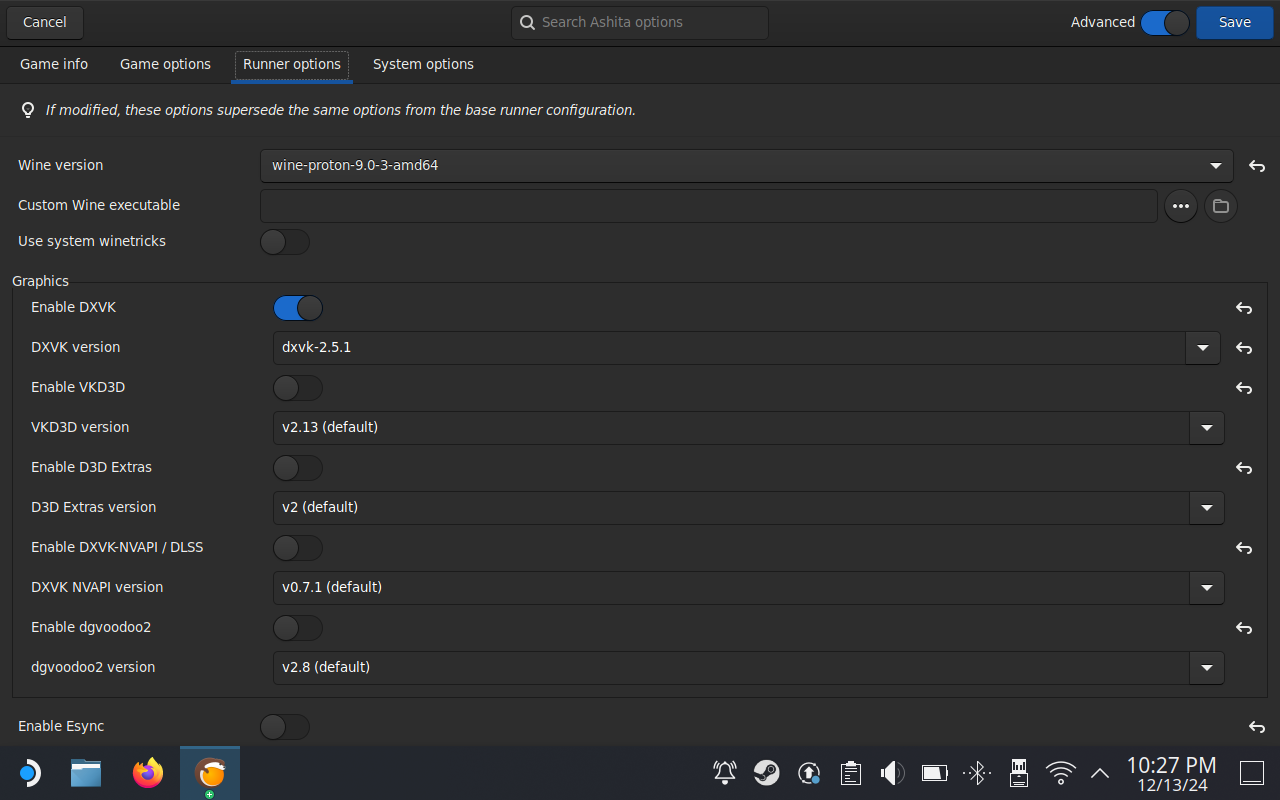
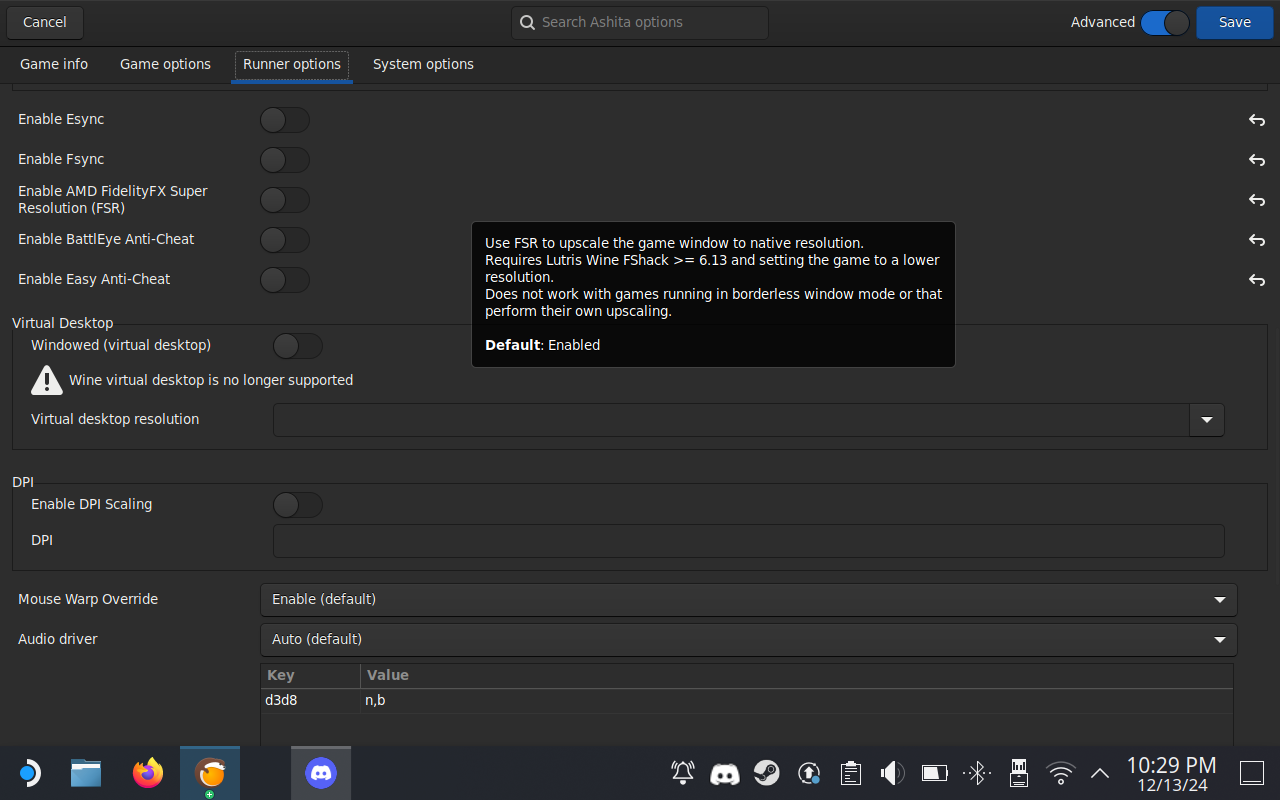
- These are the lutris settings which I currently (as of 2025-05-18) use (images below). You can install specific proton versions using
- If nothing else works, backup your game files and reinstall the game
Steam Deck specific tips
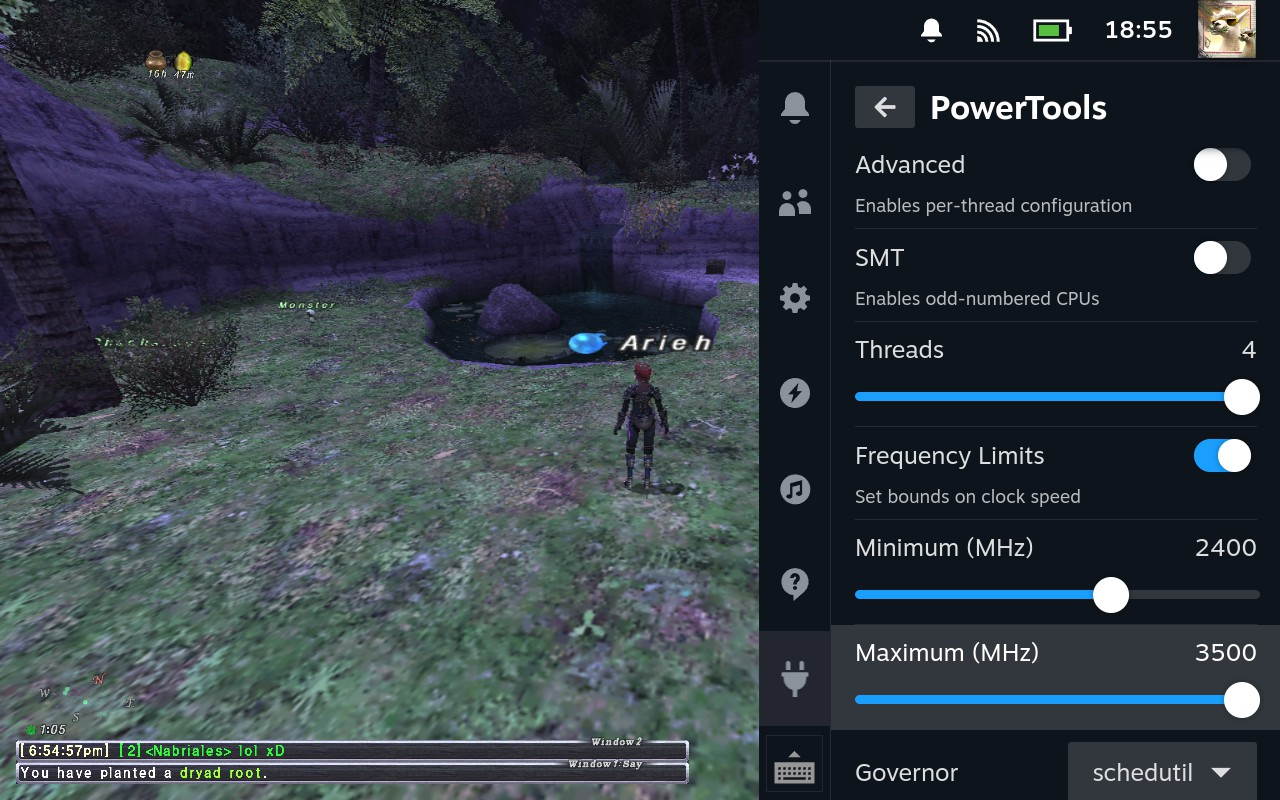
- If you use Decky, here are some Power Tools settings which will make the game run way better (in my experience)
- SMT turned off (4 threads)
- Frequency limits enabled, min 2400 MHz, maximum 3500 MHz
- No other settings have been changed
- See image for settings in UI form
- If you hold down start button while in Desktop mode your controller will switch into gamepad mode (a notification shows in bottom right when the swap is done), this will let you use the gamepad as normal without accidentally triggering things in desktop mode.
What about Macs?
- If you have a new ARM Mac (M1/M2 etc) parallels has confirmed to be working on reddit and ffxiah, but will probably require a lot of googling and praying.
- Otherwise, BootCamp will work perfectly fine with older Intel Macs.
- Someone on BG has written a guide for ARM macs as well in case you wish to try for yourself.