Author: Arieh @ Bahamut
While I personally use Ashita (as shown in screenshots), this proxy also works fine with Windower.
Additionally, this guide was made using a Steam Deck, but you can follow similar steps on any Linux distro if you have installed FFXI via Lutris as well.
Guide for installing
-
Download atom0s d3d8 proxy from here: Ashita RELEASE Proxy v1.1.0.0, you will need to join the Ashita Discord in order to download this.
-
Open up dolphin / file explorer of your choice and navigate to your downloads folder, extract the zip files into it’s own folder.
-
Go to the FFXI prefix folder, which can be done by this can be done by right clicking the ffxi setup you use in lutris and selecting “Browse files”. Navigate to PlayOnlineViewer folder, within the window that opens.
a. (The path from my Steam Deck is below, the path you would need to look in will likely look a bit different but all that matters is that the playonlineviewer folder looks correct)
/home/deck/Games/final-fantasy-xi-online/drive_c/Program Files (x86)/PlayOnline/SquareEnix/PlayOnlineViewer/ -
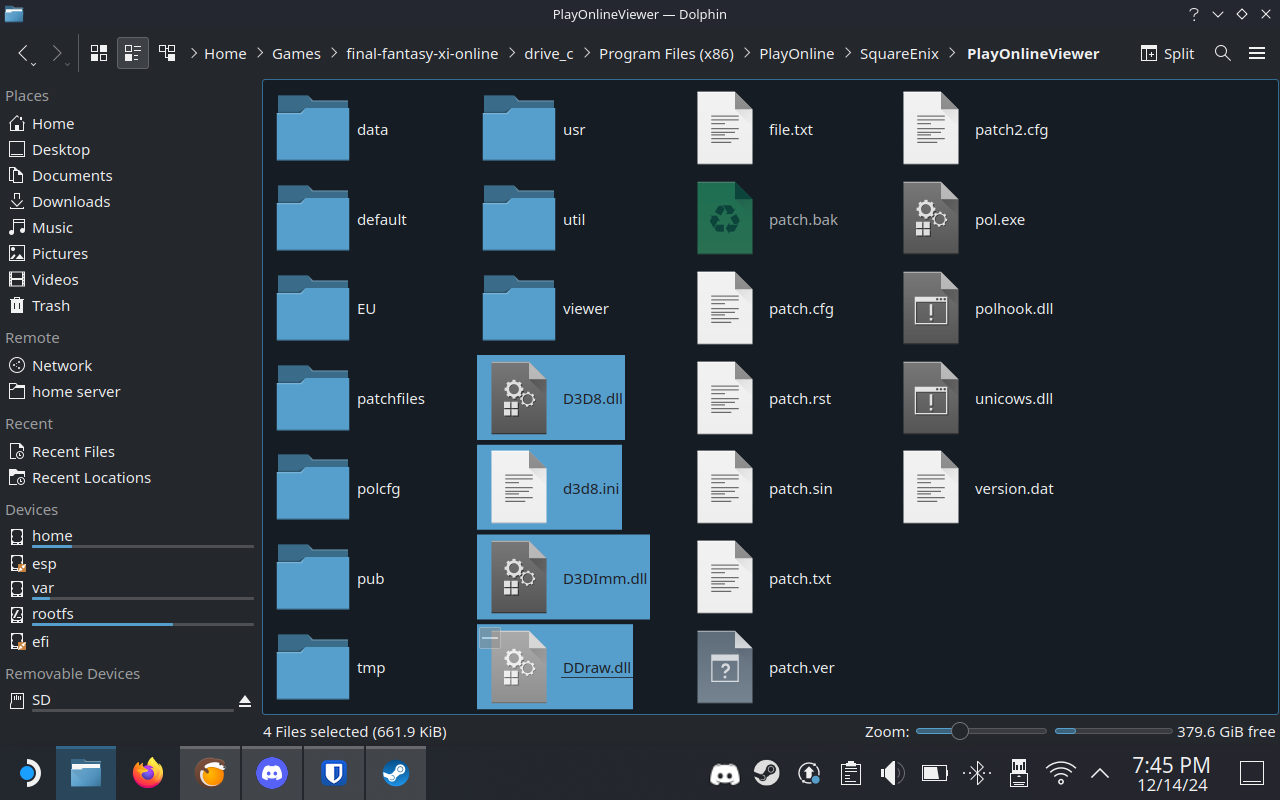
From the folder which you have extracted that contains the atom0s proxy, copy the d3d8.dll and d3d8.ini into the same folder, your playonline viewer folder should contain the files like the image below.
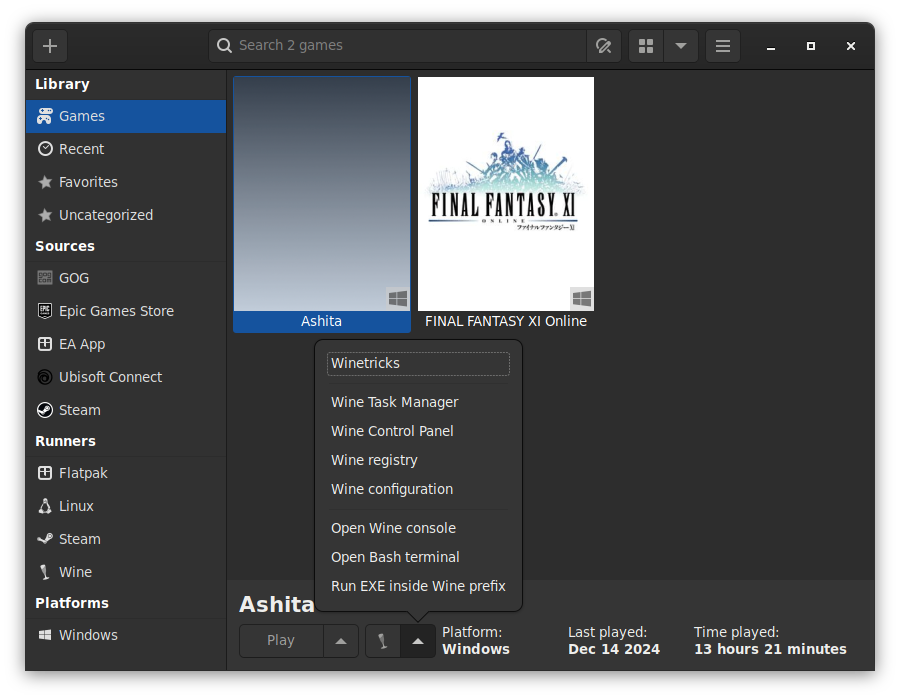
- Open lutris and click once on the FFXI game you are using to play FFXI (whether this is FINAL FANTASY XI Online or Windower or Ashita does not matter in this case). Then click on the the arrow next to the wine bottle and click the option labelled
Wine configuration.
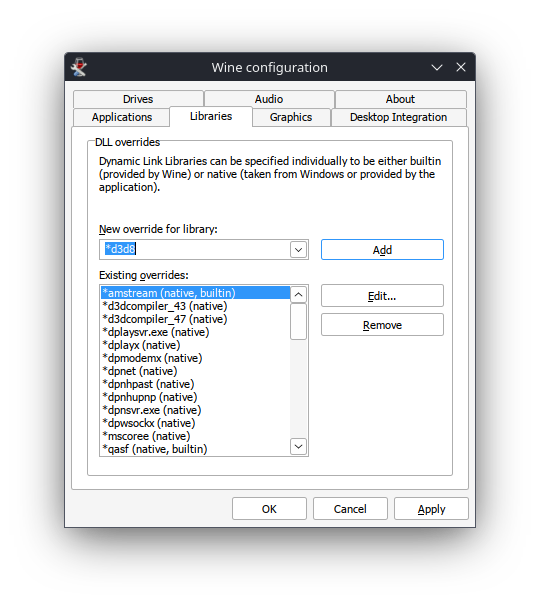
- Once the
Wine configurationwindow opens, click on the tab named Libraries and then write the following line into the dropdown belowNew override for library:*d3d8. The*must be included. Then click Add which is next to the dropdown/input field.
- After the override has been added into the list; scroll through the list to find
*d3d8and click on it to select it. This will either be at the bottom of the list or at the top of the list. After you have selected*d3d8click onEditto the right hand side of the list and change the setting to the following option:Native (Windows).
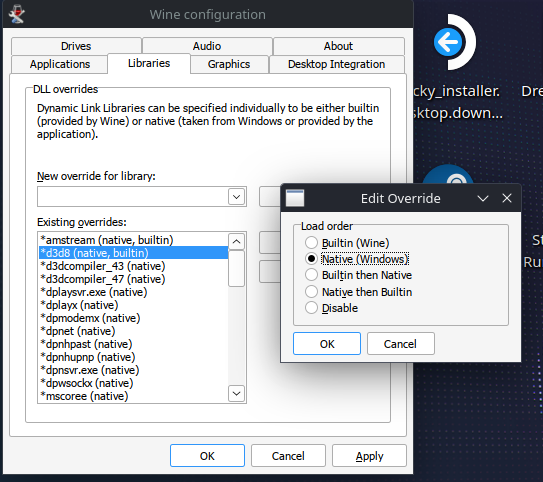
* Extra note: if this doesn't work, try it with native then builtin as a fallback
-
Click
Okin theEdit Overridewindow, then click Apply in the mainWine configurationwindow and then clickOkagain to close the window. -
Open up the main settings window again for FFXI in Lutris and then click on the
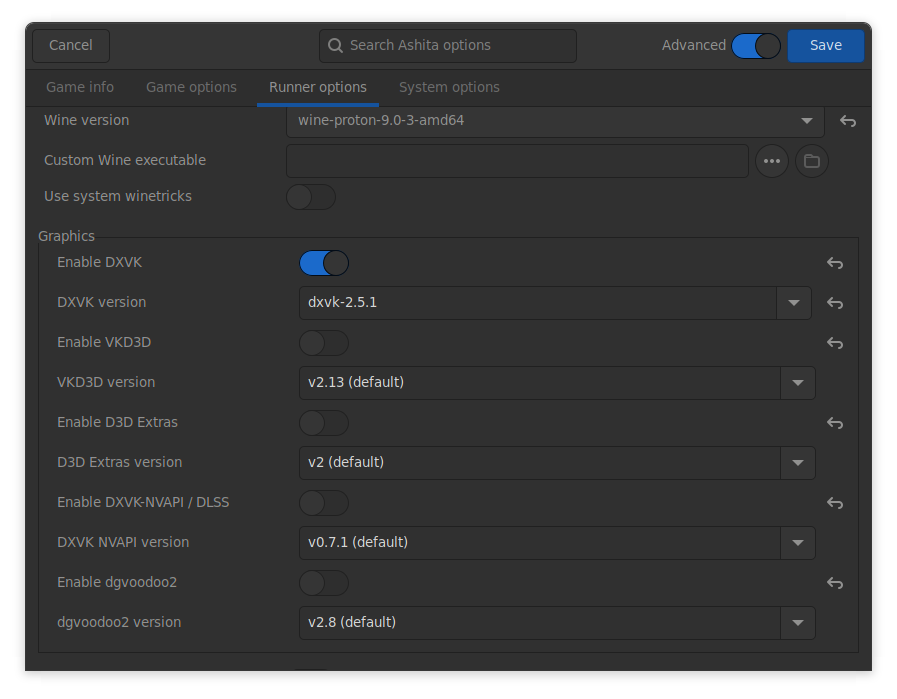
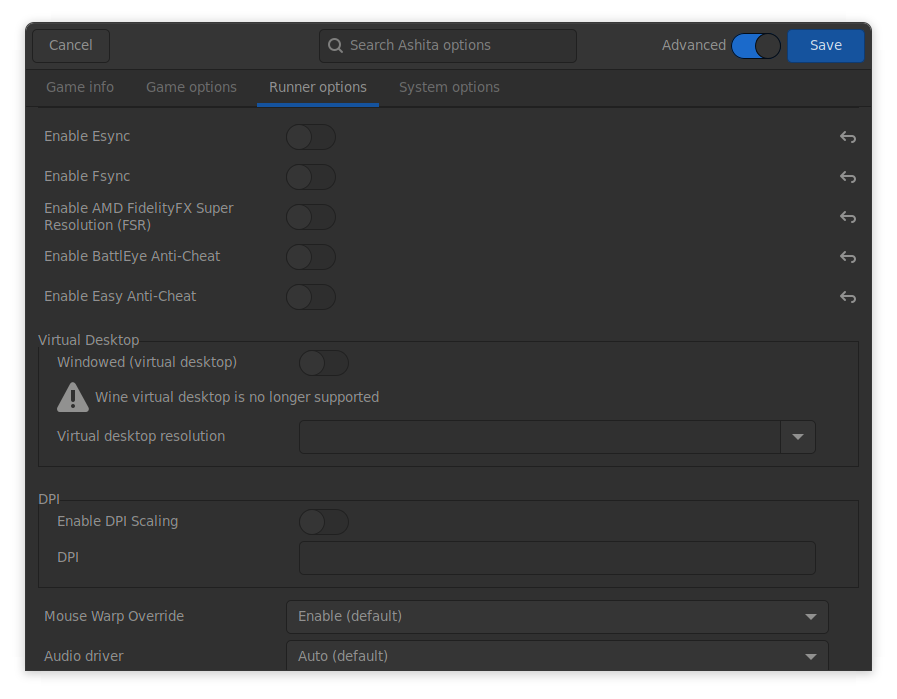
Runner optionstab. Disabledgvoodoo2in the options if it exists. Only DXVK/D8VK should be enabled, the version does not matter. For newer wine versions this may not exist at all, so you can skip this step without problem.- Additionally you can disable all other switches in the 2nd image as well, since they are unused by FFXI regardless.
-
Once this is all done, you can open FFXI again to see if it runs without stuttering/hitching. I use city areas (Jeuno/Western Adoulin work great for this). If this does not work, try it without windower/ashita and see if it works when running the game in vanilla. Try both of these options in desktop mode first before trying to run in game mode (if you’re playing using SteamOS/Steam Deck or Big Picture Mode).
-
Lots of testing will be required in this case, but it’s important to rule out possible variables when seeing what causes issues for FFXI in this case.
-
If the framerate is consistently low this is different from hitching/stuttering, where the game will run fine and then consistently stop for 0.25-0.5s every few seconds.
-